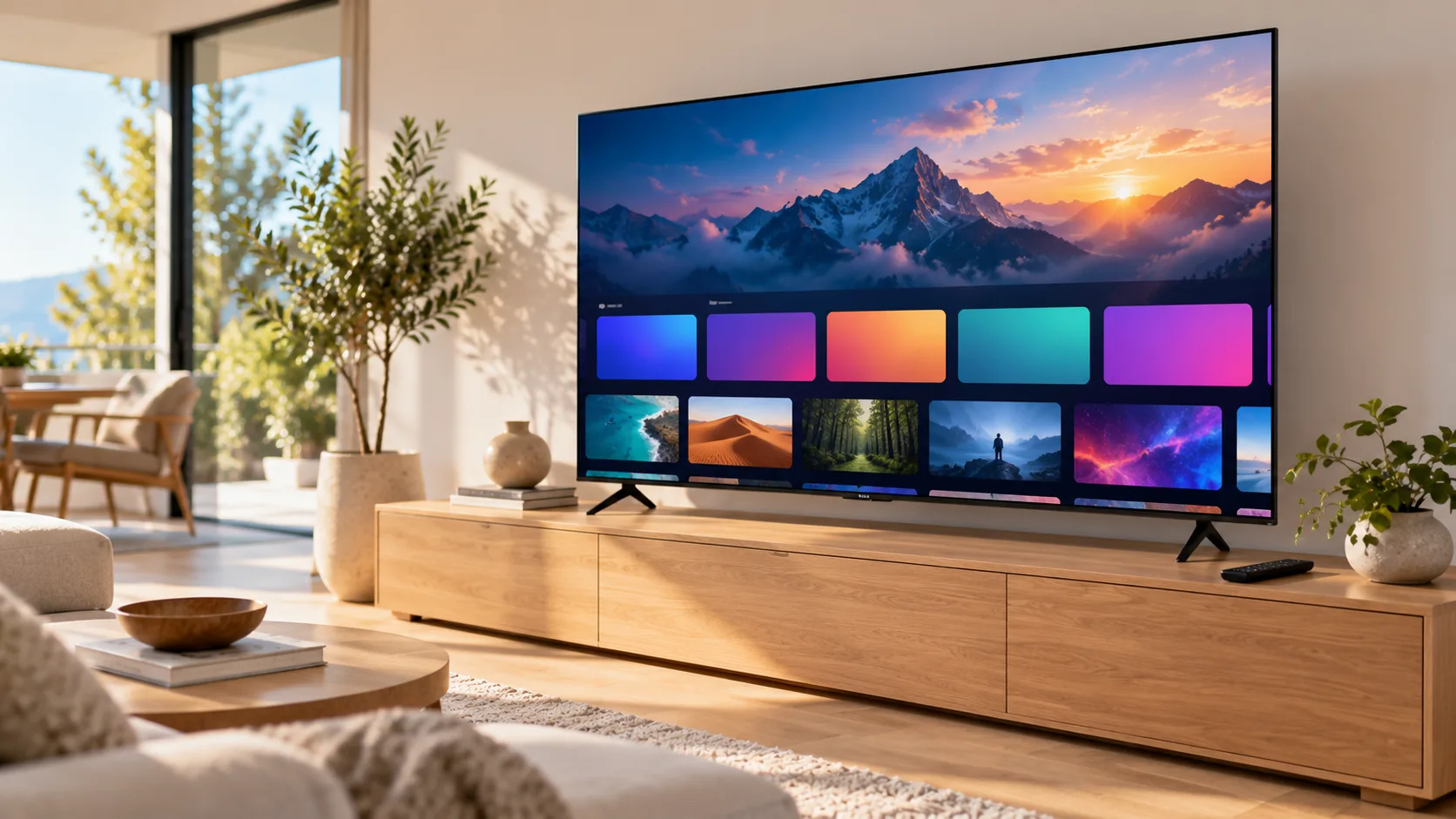
Samsung Smart TVs can play IPTV without any extra box. You install a player app from the Samsung store, add your IPTV login, and watch. This guide shows how to set up IPTV on a Samsung TV in four steps, and how to fix the most common problems.
Before you start
You need three things:
- A Samsung Smart TV connected to the internet. A network cable is more stable than Wi-Fi.
- An IPTV subscription or free trial. After you order or request a free trial, we email you an M3U link and an Xtream Codes login.
- About 10 minutes.
Step 1: Choose a player app
Samsung TVs use their own app store. The IPTV service is the same in every app. The difference is how you log in and how the menus look.
Common choices on Samsung:
- CR7 Player (listed as CR Player). It activates with your TV's MAC address and a device key, then you add your playlist on the developer's website. See our full guide to CR7 Player on Samsung TV.
- Other IPTV players in the Samsung store that accept M3U or Xtream Codes. Our login works in any of them.
App availability depends on your country and the age of your TV. If you also own an Apple TV or Android TV box, Kyro Player is another option, with direct login and no MAC activation.
Step 2: Install the app
- Press the Home button on your Samsung remote.
- Open Apps.
- Select the search icon and type the name of the app.
- Open the app page and choose Install.
If the app does not show up, go to Settings, then Support, then Software Update, update the TV and search again.
Step 3: Add your IPTV login
How you add the login depends on the app.
Apps with MAC activation (such as CR7 Player):
- Open the app. Write down the MAC address and device key shown on the screen.
- On your phone or computer, open the app developer's website and go to the device login page.
- Sign in with the MAC address and device key.
- Add a playlist: paste the M3U link, or enter the Xtream Codes server, username and password.
- Restart the app on the TV.
Our CR7 Player activation guide explains the MAC address and device key in detail.
Apps with direct login:
- Open the app and choose to add a playlist.
- Choose Xtream Codes and enter the server, username and password from our email.
- Save and wait for the channels to load.
We suggest Xtream Codes over the M3U link when the app supports both, because it loads the TV guide and the movie library with categories.
Step 4: Start watching
Open live TV, choose a country category and select a channel. Movies and series are in their own sections in most apps.
Fixing common problems
The playlist does not load
- Check the login for typing mistakes. Copy and paste it from our email.
- In MAC-based apps, check that you activated the MAC address the app shows now. Samsung TVs have one MAC for Wi-Fi and another for the cable.
- Make sure your plan or trial is active.
Channels buffer or freeze
- Test your internet speed. We suggest at least 15 Mbps for HD and 25 Mbps for 4K.
- Use a network cable instead of Wi-Fi.
- Some apps let you switch the video player in the settings. Try the other one.
No TV guide
- Use the Xtream Codes login instead of the M3U link.
- Check that your app supports a guide.
More fixes are in our page on CR7 Player not working.
Summary
To set up IPTV on a Samsung TV: pick a player app, install it from the Samsung store, add your Xtream Codes or M3U login, and press play. If you get stuck, message us on WhatsApp with a photo of the screen. Don't have a login yet? Start a free trial or see our plans.